
If you list your property on multiple online channels and also offer online website bookings via
MotoPress Hotel Booking plugin, you can easily avoid overbooking by synchronizing all those
channels with your site and with each other. To make this synchronization possible, the online
channels you use should support iCalendar file format.
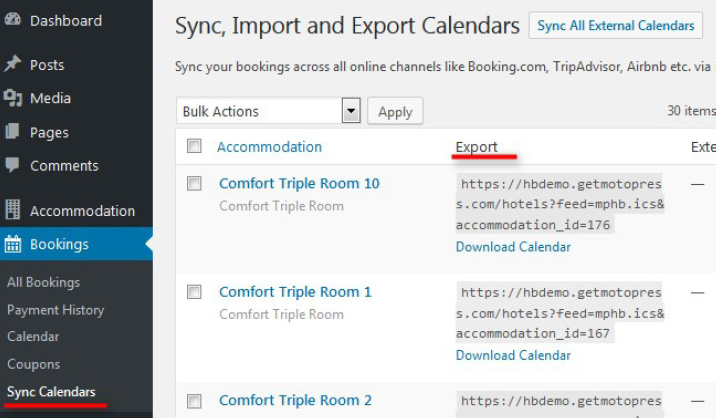
To configure synchronization of your bookings across all channels, go to your WordPress
Dashboard → Bookings → Sync Calendars . You’ll see a list of all your real accommodations
with their unique URLs (the link under Export).
In short, setting up synchronization is a 2-phase process : you’ll need to export a calendar URL
to an external channel/channels (to notify them about the bookings made through your site) and
import the link from them to your site (to notify your site about the bookings made through the
channels). In this way, your availability across channels and a website will always be up to date.
During synchronization, the plugin will download the bookings from external booking platforms
by the imported links. The external channels will download the bookings from our plugin by the
exported links according to their internal schedules.
How to export your website calendars to online channels
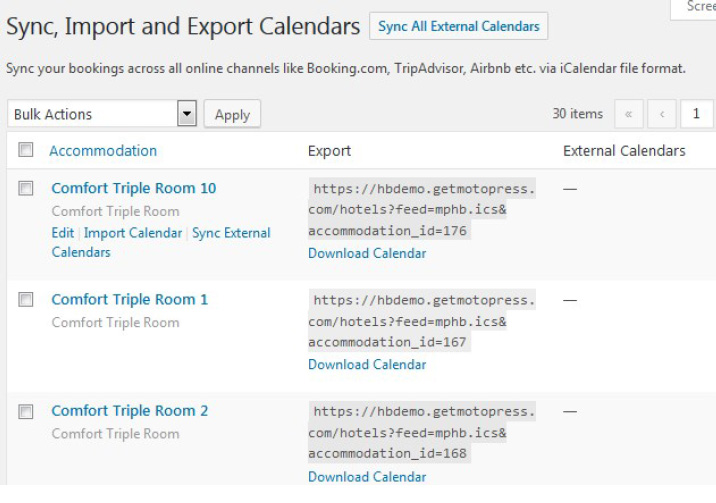
Use Export Calendar link to export your calendars to any external online travel channel. So, just
copy the URL and paste it into the appropriate field in the OTA backend.
Note : each accommodation comes with its unique calendar URL.
How to import calendars from external online channels to your website
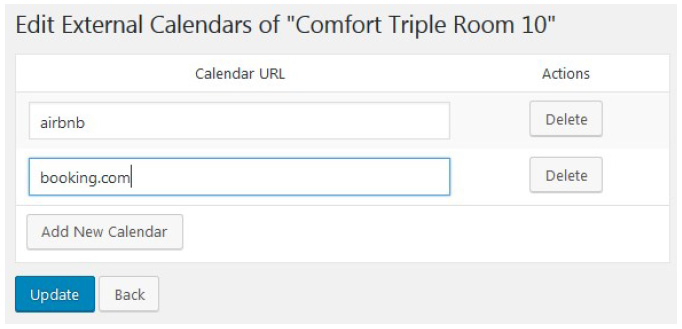
Go to the external online channel, find the iCal file URL and copy it (each real accommodation
should have its unique iCal URL). Then go to your WordPress dashboard → Bookings → Sync
Calendars → choose a needed accommodation and click Edit → click Add New Calendar →
paste the URL → Update . Here you may add as many URLs from different channels as needed:
Quick links: how to import/export calendars across most popular online channels:
How to import and export Calendars on Booking.com
How to import and export Airbnb calendars
How to import and export HomeAway calendars
How to import and export TripAdvisor calendars
If you list your property on any other online travel agency, make sure that it supports iCal file
format for synchronization.
Once all your calendars are crosslinked, you can synchronize the bookings manually or enable
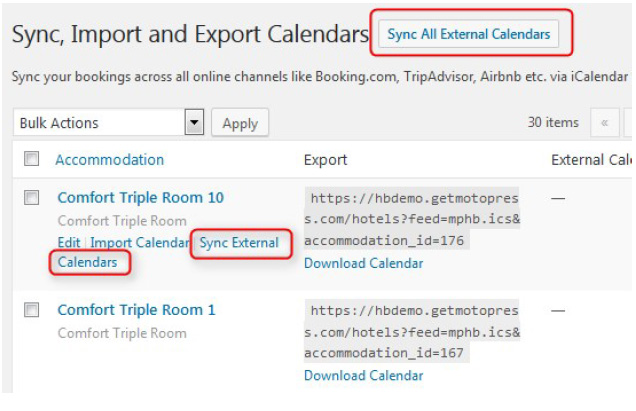
the automatic sync. To manually sync only a specific accommodation across the channels, click
‘Sync external calendars’ only under this particular accommodation. To synchronize all
calendars for all accommodations, click on the ‘Sync all external calendars’ button:
And wait for the process to start and finish:
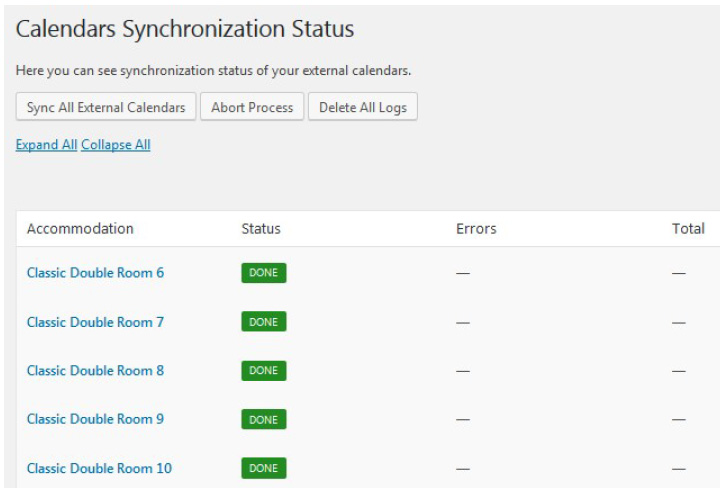
When the process is complete, you can click on any chosen accommodation and see how many bookings were received. Moreover, you’ll be able to see all bookings in the “ All Bookings ” menu and “ Calendar ” menu. So far, you may check the source of the booking (whether it’s your website or any external online travel channel via All Bookings → choose booking → click Edit → view Logs).
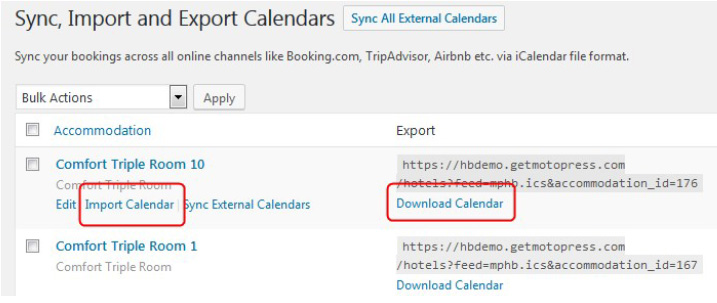
You may also manually download calendars from your site to your PC or upload external calendars by clicking Import Calendar or Download calendar buttons:
How to configure automatic synchronization
In the Accommodation tab → Settings (scroll down) you can enable and configure the automatic sync:
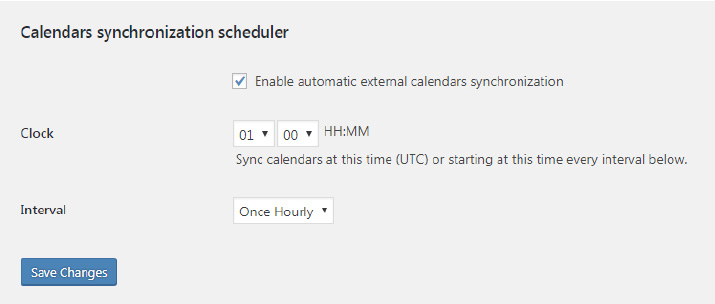
Choose the time when the synchronisation should start in the Clock field and the time period of
the synchronisation in the Interval field. The available intervals are
- daily
- twice daily
- once hourly.
Note : to prevent unnecessary requests to the server, the automatic sync is executed in the set
time interval only if there is a visitor on your website within that time interval. This means that
the plugin will download bookings from external calendars as soon as someone visits your
website.