
At first, install Success and Failed Transaction pages for future payments.
To set up payment methods, go to Payment Gateways tab .
At first, set General Settings:
- Specify whether the customer pays a full price or a deposit ;
- If the deposit, choose whether it’ll be f ixed price or percent ;
- Enable SSL for secure payments ( HTTPS is required by most payment gateways );
- Select Success and Failed Transactio n pages you installed beforehand;
- Select default payment gateway : PayPal, Stripe, 2Checkout, Braintree. The one you
choose will be displayed by default; all others, if enabled, will be displayed as alternative
for users;
- Set Pending payment time – period of time in minutes the user is given to complete
payment. Unpaid bookings become Abandoned and accommodation status changes to
Available.
Test payments
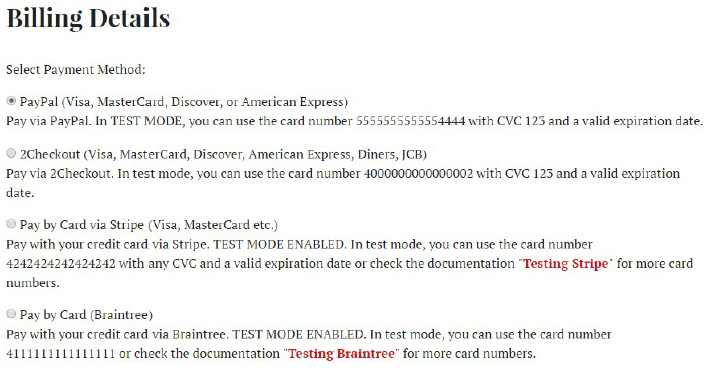
Enable Sandbox Mode of the payment gateway for test payments, specify your testing
credentials, save changes.
On the frontend, you’ll be able to test the payments in the following way:
Enable PayPal
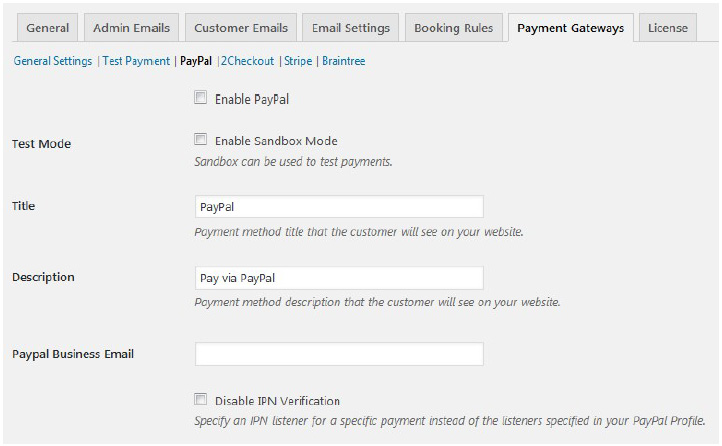
To turn on and set up PayPal, go to the appropriate tab:
- Enable PayPal;
- Enable test mode if needed;
- Specify title and description for it;
- Specify PayPal business email (or Sandbox email for testing);
- Disable IPN (instant payment verifications) if needed.
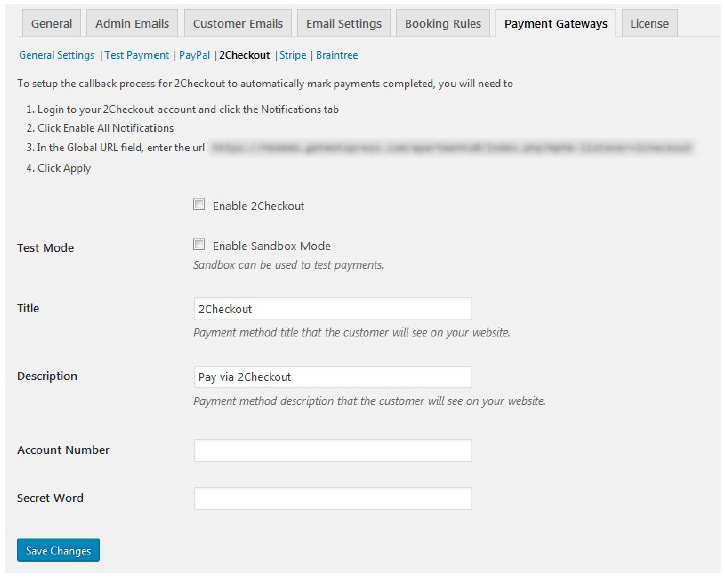
Enable 2Checkout
- Enable 2Checkout;
- Enable test mode if needed;
- Write title and description for it;
- Specify your account number and secret word.
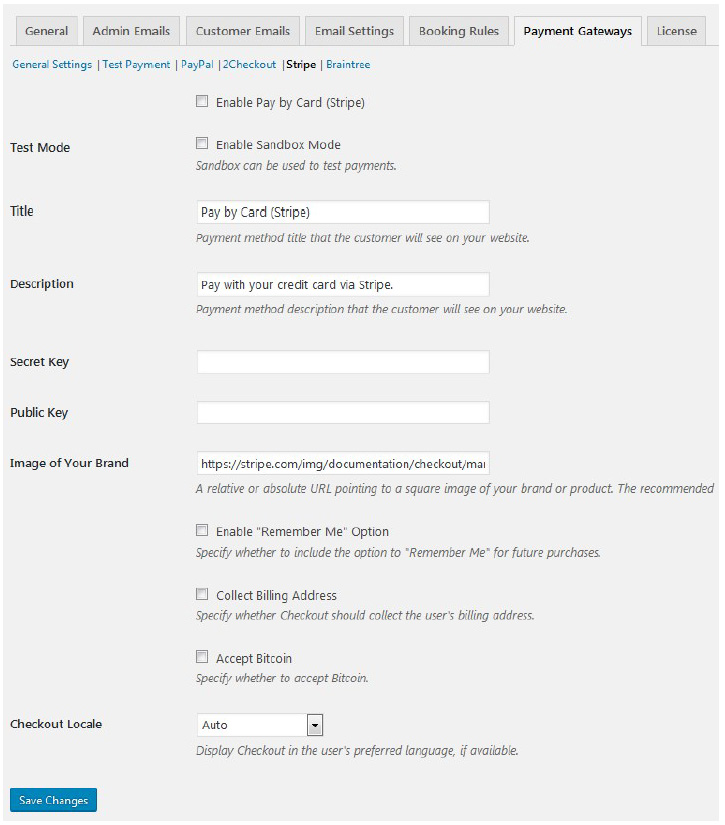
Enable Stripe
- Enable Stripe;
- Enable text sandbox if needed;
- Specify title and description;
- Specify secret and public key;
- Provide the link to your brand image;
- Apply several more options: enable/disable Remember me option, collect/not collect billing address, accept/not accept Bitcoins;
- Specify default language for checkout.
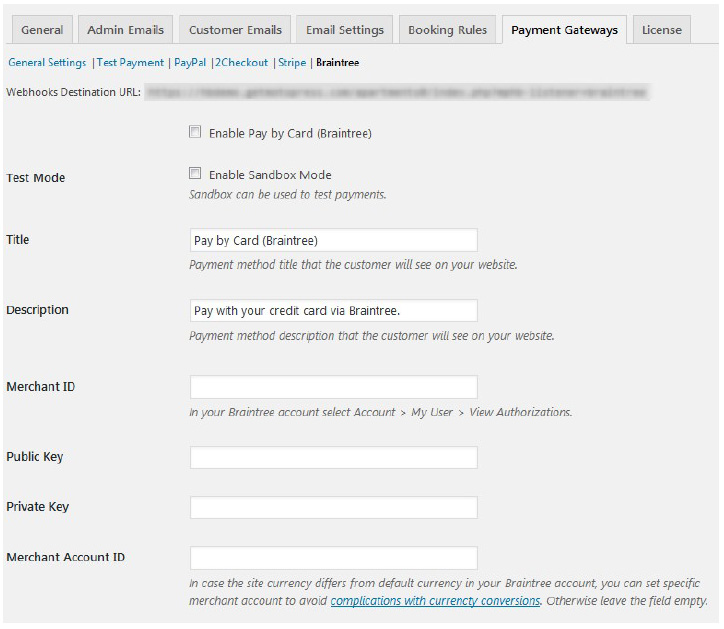
Enable Braintree
- Enable Braintree;
- Enable sandbox for test payment if needed;
- Set title and description;
- Set merchant ID;
- Set public and private key;
- Set Merchant Account ID.
More payment gateways
If you need more payment gateways, use Hotel Booking WooCommerce Payments extension –
it will help you integrate dozens of WooCommerce payment gateways with your hotel / vacation
rental website.