
All Bookings
If you enabled users to submit online bookings through your site, you can manage all received
bookings with all statuses under Bookings → All bookings menu .
You can check or change status of the booking: it can be Pending User Confirmation, Pending
Payment, Pending Admin, Abandoned, Confirmed, Cancelled.
Add booking manually
Since version 2.7.0 it is possible to add new bookings at the back-end. Follow the steps below
to learn how to add new bookings:
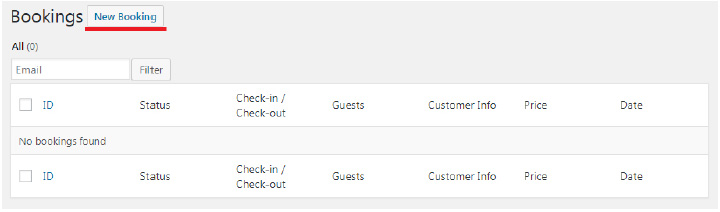
– navigate to Bookings>All Bookings
– click ‘ New Booking ’ button at the top
– select Check in/out dates, certain accommodation type if needed, and capacity and click ‘ Search ’ button
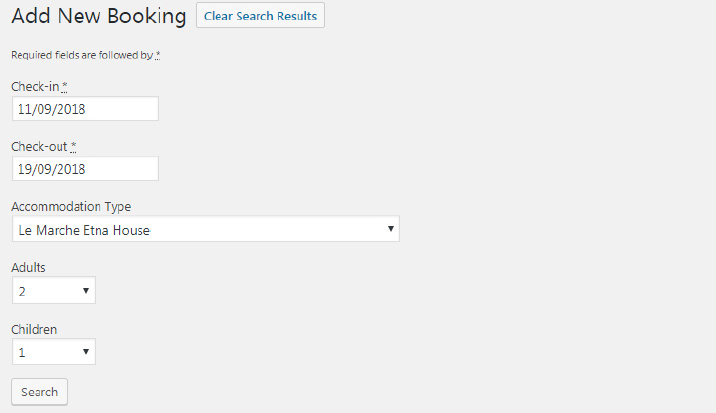
– system will show available accommodations types and its accommodations Select
needed accommodations and click Reserve button
– After that fill the forms like on front-end checkout page. So here you can select amount
of guests, add extras/services, guest name, apply coupon code (optional), fill required
fields like name, email and phone number.
– Fill all the information and click Book Now button.
Add payment manually
If the guest has already paid the needed amount of money and should pay the rest after arrival
to the hotel, you can add the payment manually to the appropriate booking.
To do this, simply go to a needed booking, scroll down to Additional info and click Add payment manually.
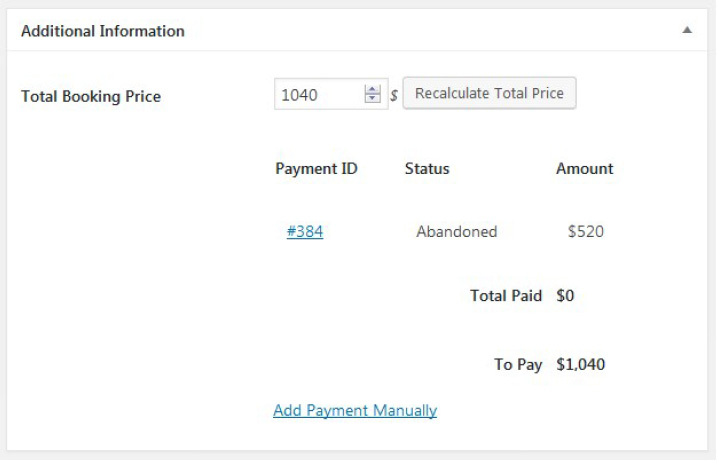
The history of all payments you can view under Accommodation → Payments History.
Bookings Calendar
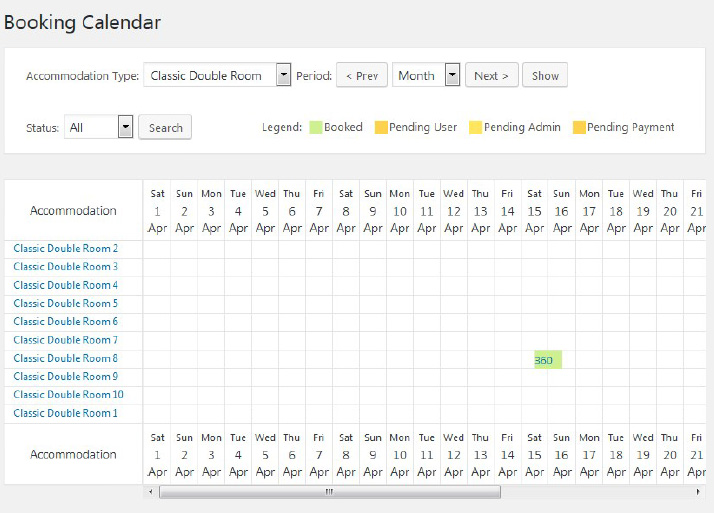
To preview all bookings in a user-friendly calendar view, go to Bookings → Calendar. Here you
may find the bookings by an accommodation type, by period or status.
Create discount coupons
Please note: the use of coupons should be enabled via Accommodation → Settings → General
tab → Misc → tick “Enable the use of coupons” (the option was released in Version 2.1.0).
If you want to provide guests with discount coupon codes, which they can apply on the checkout
page, you should go to Bookings → Coupons → Add new.
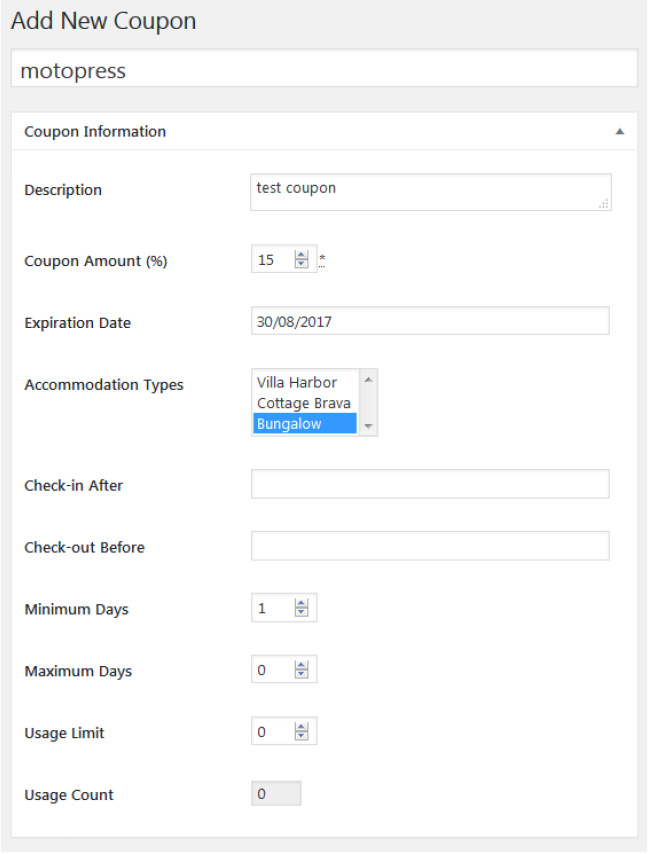
All the settings of this menu will let you customize the coupon:
– Create the coupon name
– Add coupon description
– Set the discount amount of the coupon in % (required)
– Optionally set the expiration date
– Optionally choose accommodation types the discount coupon is valid for
– Optionally set check-in and check-out dates “frame” when the discount coupon is valid
– Optionally set minimum and maximum days to stay required for the coupon to be valid
– Optionally set the number of times the coupon can be used
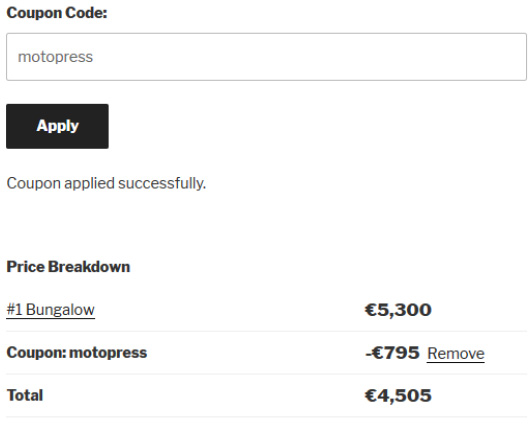
The guests can apply the coupon on the checkout page when confirming and booking an
accommodation:

So, when the coupon is applied, the guests pay a discounted price:
Set Booking rules
Note! New booking rules were released in Version 2.3.0. Make sure that your old booking rules
are successfully transformed into new ones.
Go to Bookings → Booking Rules menu to set your booking rules.
These rules allow you to set minimum and maximum check-in and check-out dates, minimum
and maximum stay-in days for all or individual accommodations. Also, using this menu you’ll be
able to block the booking option for chosen accommodations at specific periods of time.
Check-in rules
You may add as many rules as you want.
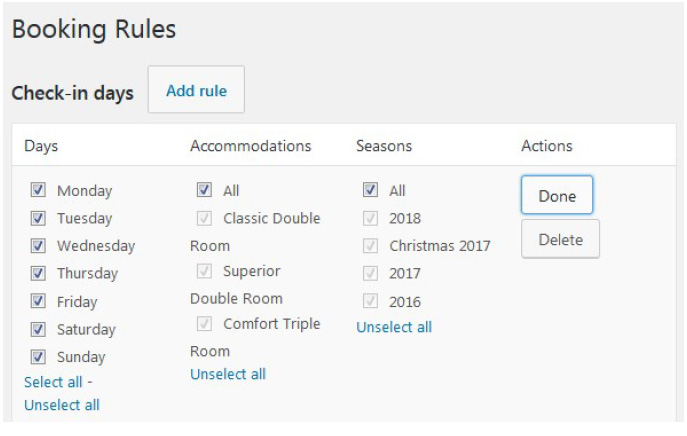
Select all available check-in days for chosen accommodation types and seasons.
For example, if guests can check in at any day and to any accommodation, just select All.
If you want to add a custom booking rule for any particular accommodation type, just add a new
rule. For example, check-in is not available on Monday for Classic Double room:
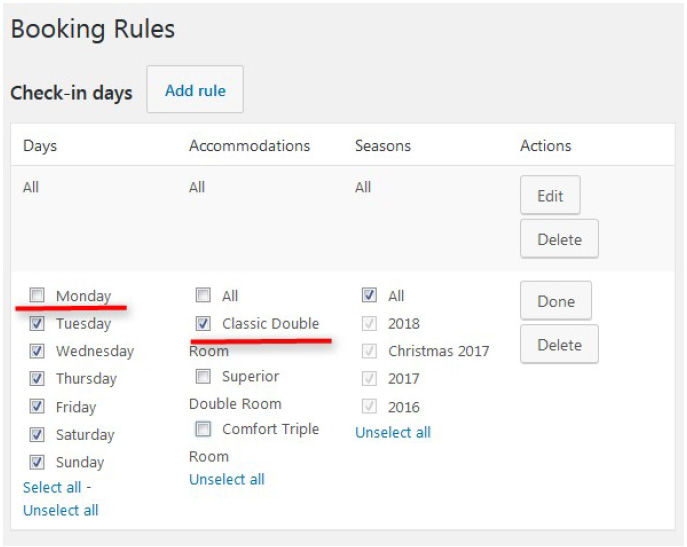
To make sure that it doesn’t conflict with the rules for all other accommodation types, uncheck
Classic Double room in the first rule applied for all other accommodations. Drag and drop the
rules to set the needed priority:
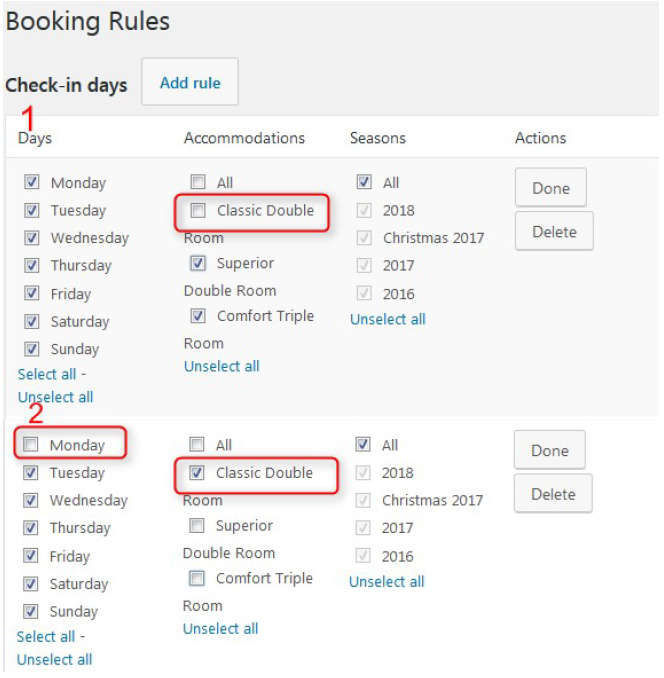
On the frontend, if a guest wants to check in on Monday, there won’t be Classic Double room in the search results list, because we made check-in on Mondays unavailable for this accommodation type.
Check-out rules
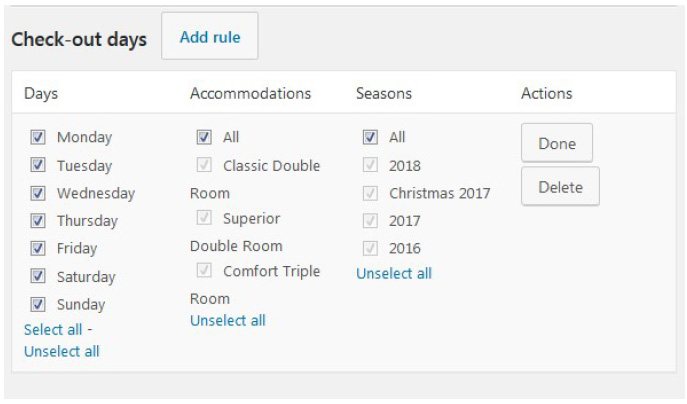
You can do the same for the check-out days. Just set when guests can check out (can be
applied to all accommodation types or to any individually). Make sure that rules don’t conflict
with each other.
Minimum stay rules
You may set a minimum stay-in period for all accommodations or each one individually
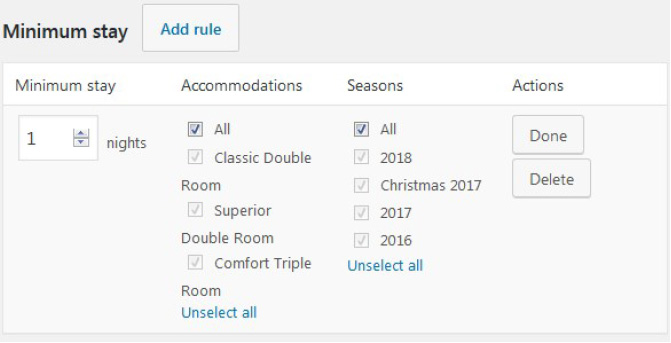
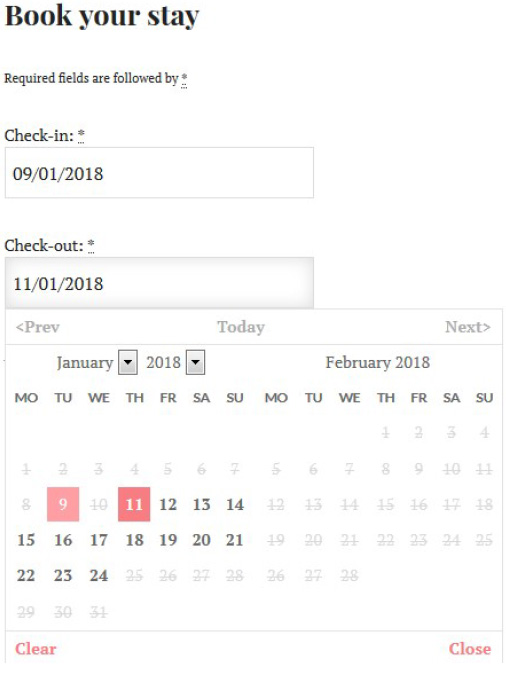
For example, if you want to set 2 days as a minim stay-in period for all accommodations, this will be shown in the search availability calendar as well (guest will be able to choose a check-out date only in 2 days after the check-in date):
Maximum stay rules
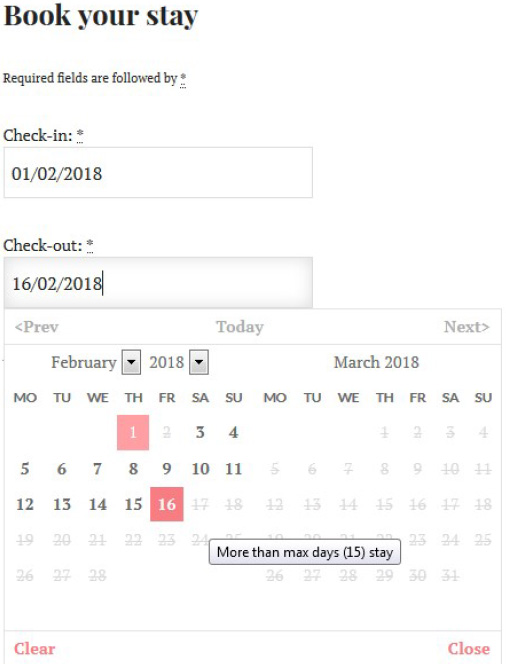
Set the maximum stay-in period for all accommodations or each one individually. For example, you may set maximum 15 days for all rooms:
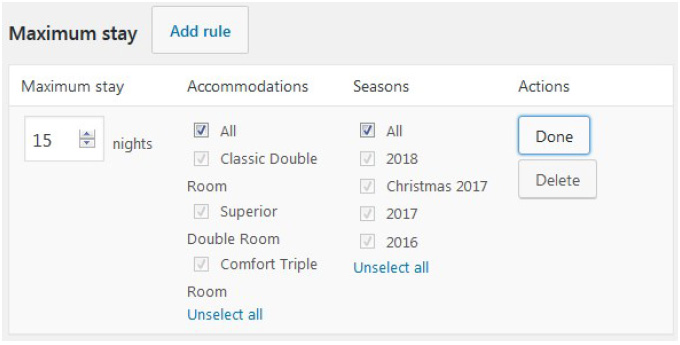
In this case, a guest won’t be able to choose more than 15 days for stay-in (and unavailable days will be crossed out in the search availability calendar).
Block accommodation rules
If you need to make all accommodations or any specific accommodation type/actual
accommodation unavailable during a specific period of time, use “Block accommodation rules”.
Among the restriction rules are: not check-in, not check-out and not stay-in (when you want to
totally block accommodations/a specific accommodation at a chosen period of time).
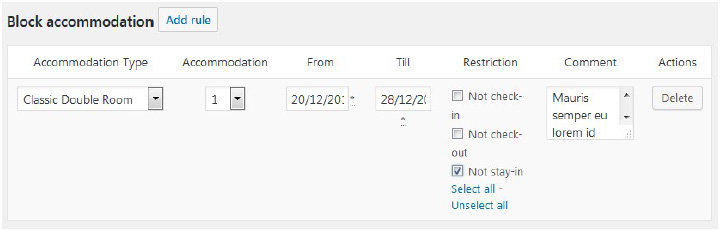
You may add as many rules as you want for each accommodation separately.
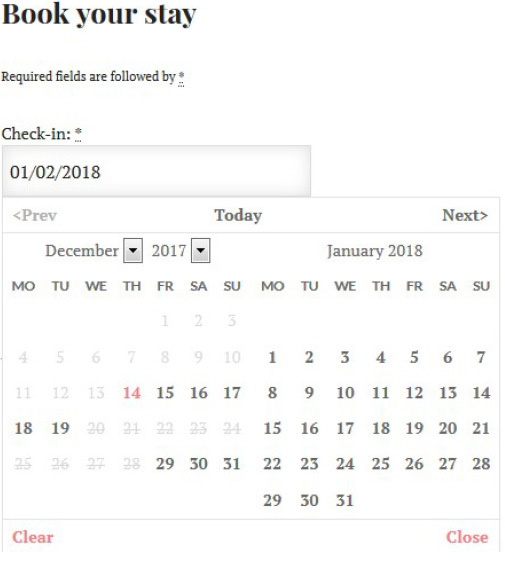
For example, if you rent out 2 apartments and want to totally block all for 8 days, simply choose needed dates and ‘All’. Then, in the search availability form, all the blocked dates will be crossed out (the dates are blocked from December, 20 till December, 28):
Don’t forget to save your changes!
Please note, if there are too many different rules, the frontend search availability calendar won’t
be able to show all of them instantly, but all the rules will work delivering results according to all
your rules.
As you see, the system of booking rules is very flexible – you can customize the rules for any
accommodation type / actual accommodation / season with ease.
Taxes And Fees
Fees
Fee is a separate mandatory charge in addition to base accommodation rate. Follow the steps
below to add a new fee:
- Go to Bookings>Taxes & Fees> push Add New button (next to Fees)
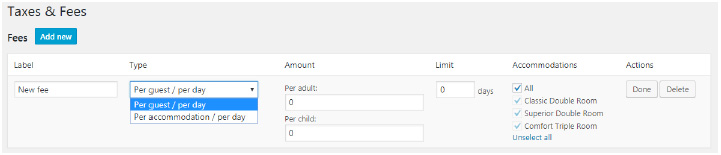
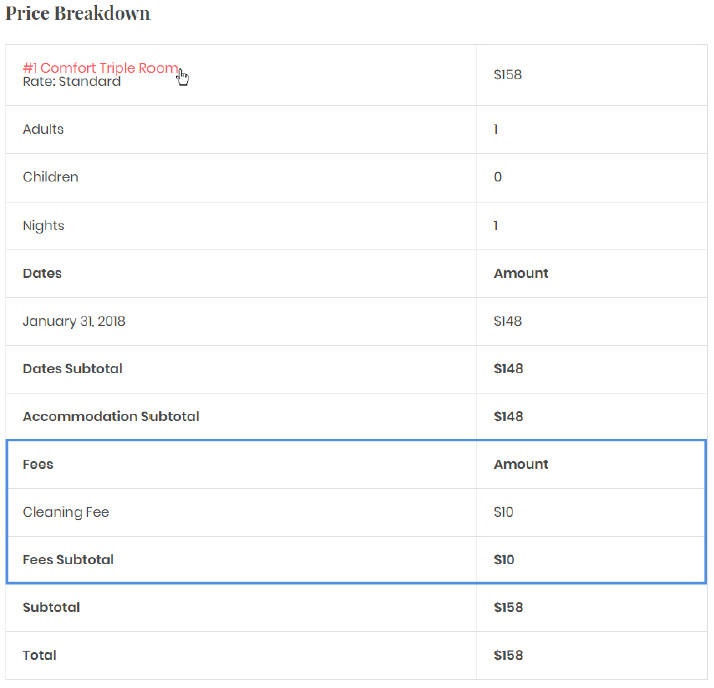
- Give a name to your fee e.g. ‘Cleaning fee’. This label will be shown at Checkout page under price breakdown.
- Select whether to charge the fee per guest or per accommodation:
- ‘Per guest / per day’
- ‘Per accommodation / per day’
- Define the price (Amount) of fee for Adult and Child. (when you set to ‘charge per accommodation’, there is single box for price)
- Next you can set a limit of days the fee is charged. If you put ‘0’ days the fee is charged each day of stay period. If you want to charge once only, set 1 day.
- Check the accommodation types you want to tie the fee with. You should uncheck All to select certain accommodation types.
- Click ‘Done’ and ‘Save Changes’
Here is an example of Cleaning Fee with price $10 and that is charged once (1 day limit) for whole accommodation (not per guest) and is tied to Classic Double Room and Comfort Triple Room

You can add unlimited amount of fees in the same way.
Your guests can see all applied Fees at checkout page by breaking down the price table
Taxes
You can add Taxes for Accommodations, Services and Fees separately.
Taxes for Accommodations
In order to make Accommodation types taxable you should navigate to your Dashboard →
Bookings → Taxes & Fees and follow the next steps:
- Click Add new button next to Accommodation Taxes

- Name the Tax. The label will appear in a price breakdown on the frontend (your guests
will see it).
- Select a type of the tax among:
- Per guest / Per day – allows to add different tax for adult and child.
- Per accommodation / Per day – add fixed tax for accommodation per day – not
depending on guests quantity.
- Per accommodation in percents (%) – add tax in percents for accommodation
without days count.
- Define ‘Amount’ of Tax – this will depend on type of the Tax – percentage or price.
- Add limit of days if needed. When there is ‘0’ the tax will be applied to all days of stay-in
period. You can put ‘1’ to charge the tax once only.
- Check the accommodation types you want to apply this tax for. You should uncheck All
to select certain accommodation types.
- Click ‘Done’ and ‘Save Changes’
Here is an example of 6 % Occupancy Tax for whole accommodation and is applied for all Accommodation

You can add more Taxes in the same way.
Your guests will see all applied taxes at checkout page by breaking down the price table.
Taxes for Services and Fees
In addition to Accommodation taxes, you can also add taxes for Services and Fees separately.
There are the same properties for both types of taxes available:
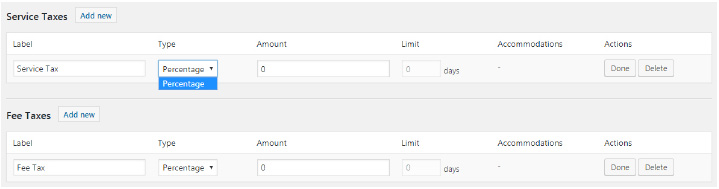
These percentage taxes are for total fees and services amount.
Tip: If you need to apply Tax for total sum of reservation, you should create a tax for each type (accommodation, service (if there are any) and fee(if there are any)) with the same percent amount.
Your guests will see all applied taxes at checkout page by breaking down the price table (before they pay).