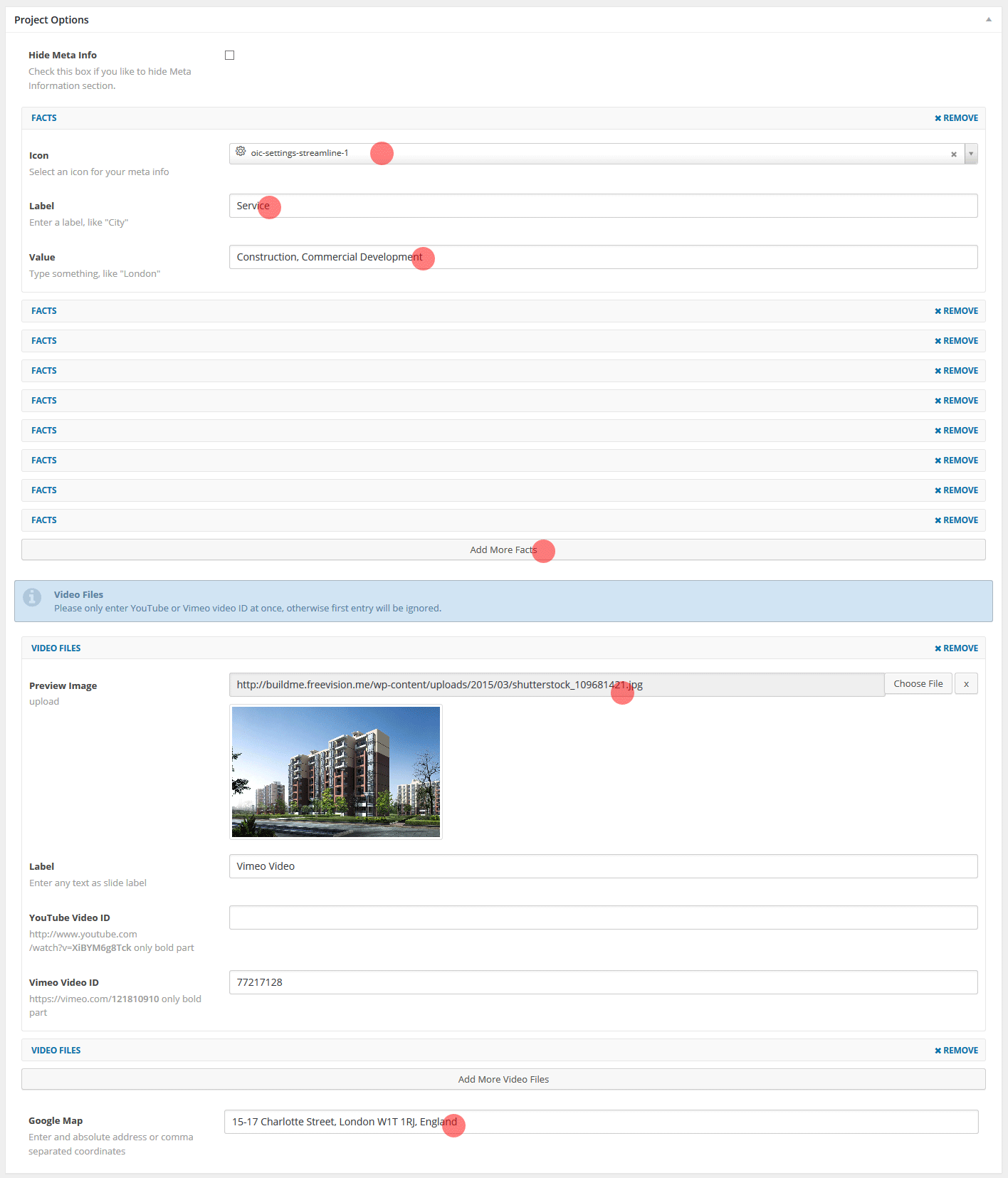
We included an amazing multimedia gallery tool which enables you to embed your images, videos and project location map into a responsive, modular, touch-enabled gallery interface with easy to use options. Check out live single project page.
Step by Step adding media files.
Step 1 – Click to Add Project Item.
Step 2 – Enter your Project title.
Step 3 – Choose Project Category
Step 4 – Add Featured Image
Step 5 – Click to “Add Media” button on your editor.
Step 6 – Create a Gallery (See attached screenshot)
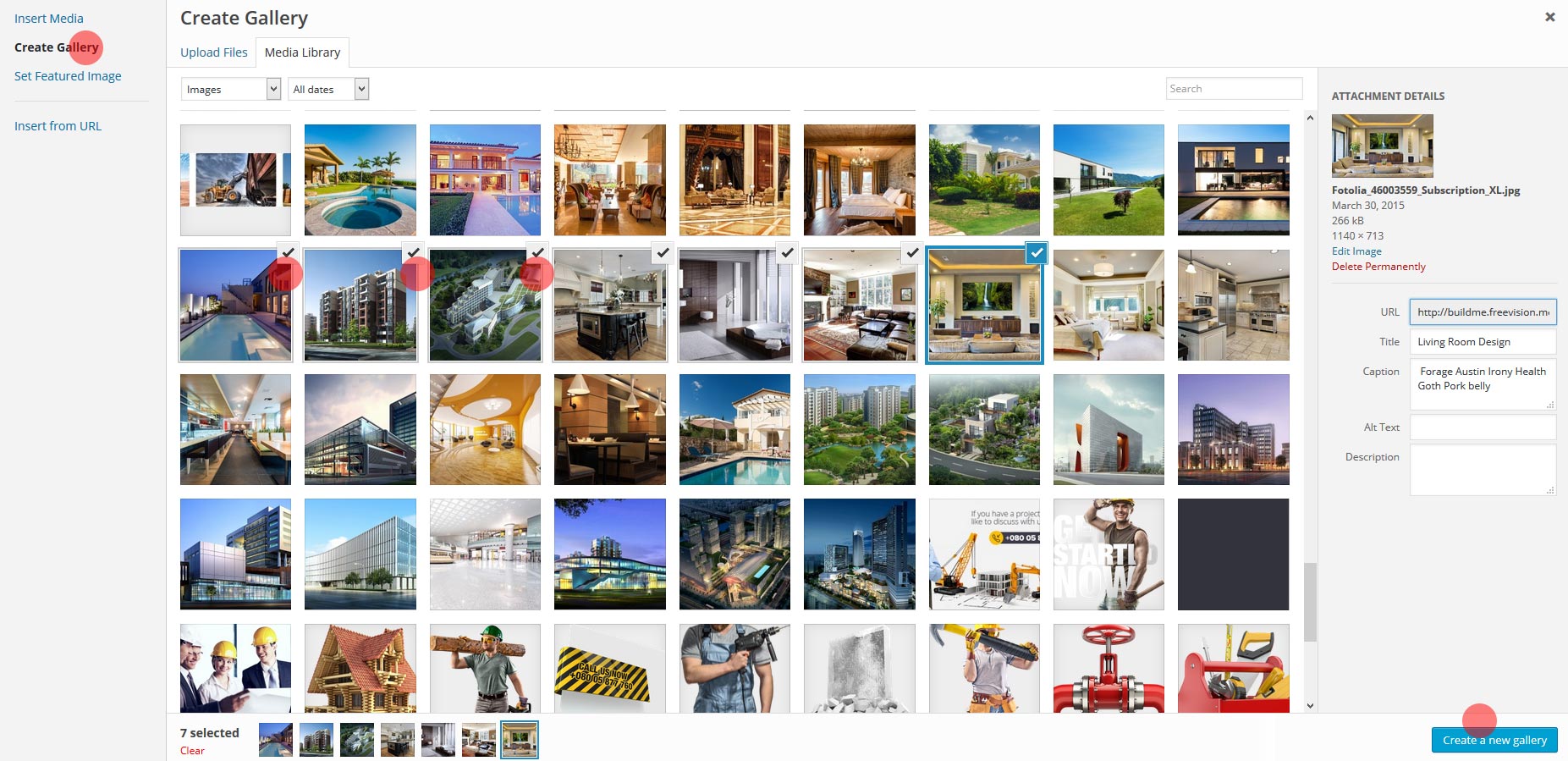
Step 7 – Make sure you’ve entered caption for each selected gallery item. ( This is optional)
Step 8 – Click to “Insert Gallery”
Step 9 – Insert your project detail content.
Step 10- Enter required fields to create project details. ( This is optional) (See attached screenshot)